Attention: Here be dragons
This is the
latest
(unstable) version of this documentation, which may document features
not available in or compatible with released stable versions of
GodotXterm.
Checking the stable version of the documentation...
PTY node
A PTY (pseudoterminal) spawns and controls actual shell processes like bash, cmd, or any command-line program. Unlike OS.execute(), which runs a command and gives you the final output, PTY gives you real-time streaming output and lets you send input while the process runs.
Note
PTY is supported on Linux, macOS, and Windows, but not Web. Windows support uses ConPTY which requires Windows 10 version 1903 (May 2019) or later.
Overview
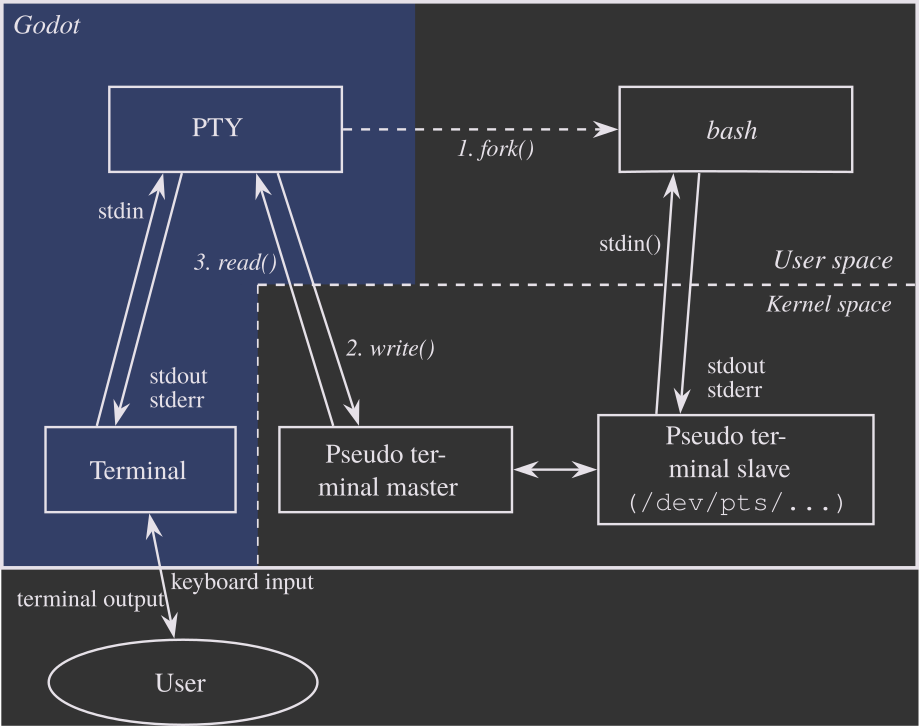 ”PTY Diagram” is a derivative of Termios-script-diagram.svg by Krishnavedala, used under CC0.

Fork a process
When fork() is called, the PTY creates a new shell process (for example
bashin the diagram above). The OS also creates a pseudoterminal pair: a master side (connected to PTY) and a slave side (connected to the shell). The shell process treats the slave side as a real terminal.Write input
Data is sent via write() (e.g.,
pty.write("ls -al\n")). This travels from PTY → pseudoterminal master → pseudoterminal slave → shell process. The shell receives the command as if it were typed on a keyboard.Read output
The shell executes the command and writes output to its “terminal” (the slave side). This flows back: shell → pseudoterminal slave → pseudoterminal master → PTY. The data_received signal fires with the output data.
Ongoing communication
Steps (2) and (3) repeat for the lifetime of the process. Commands can be sent, output received, and special signals like
ETX(Ctrl + C) can be sent to interrupt running programs.
Basic usage
PTY can be used to run one-off commands. Output will be emitted via the data_received signal. When the command completes, PTY emits the exited signal with the exit code.
extends Node

@onready var pty = $PTY

func _ready():
    # Connect to signals
    pty.data_received.connect(_on_output)
    pty.exited.connect(_on_exit)

    # Run a simple command
    var result = pty.fork("ls", ["-la"])
    if result != OK:
        print("Failed to run command: ", result)

func _on_output(data: PackedByteArray):
    var output = data.get_string_from_utf8()
    print("Command output: ", output)

func _on_exit(exit_code: int, signal_code: int):
    print("Command finished with exit code: ", exit_code)
For long-running programs that produce continuous output, PTY provides real-time streaming. The kill method can be used to control or terminate the running process.
extends Node

@onready var pty = $PTY

func _ready():
    # Connect to signals
    pty.data_received.connect(_on_output)
    pty.exited.connect(_on_exit)

    # Start ping
    var result = pty.fork("ping", ["google.com"])
    if result != OK:
        print("Failed to start ping: ", result)
        return

    # Stop ping after 10 seconds
    await get_tree().create_timer(10.0).timeout
    print("Stopping ping...")
    pty.kill(2) # Send SIGINT to stop the process

func _on_output(data: PackedByteArray):
    var output = data.get_string_from_utf8()
    print("Shell output: ", output)

func _on_exit(exit_code: int, signal_code: int):
    print("Shell exited with code: ", exit_code)
Connecting a Terminal
To create a fully functional terminal, connect the PTY to a Terminal node:
Add a Terminal node to your scene.
Add a PTY node to your scene.
In the PTY’s inspector, set the Terminal Path property to point to the Terminal node (e.g.,
"."if PTY is a child of the Terminal).Fork a process in code.
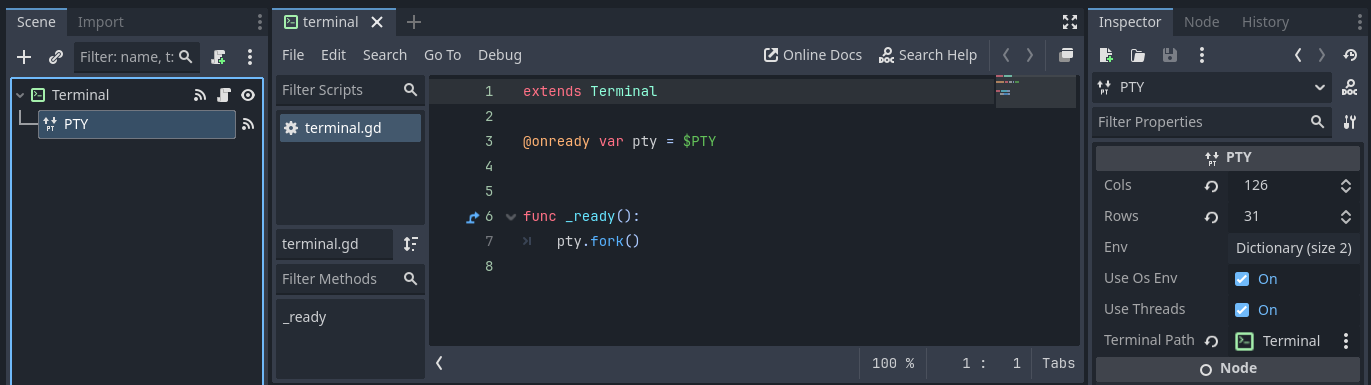
extends Terminal

@onready var pty = $PTY

func _ready():
    # terminal_path is already set in inspector to connect signals automatically

    # Fork a shell process
    var result = pty.fork()
    if result != OK:
        print("Failed to start shell: ", result)
Note
If no args are provided to fork(), then PTY will default to using the program specified by the SHELL environment variable.
If this environment variable is not set, then it will fall back to sh on Linux and macOS, and powershell on Windows.
Next steps
Explore the complete PTY class reference for advanced features.